
PNG to JPG converter - smaller files, no black backgrounds.
Turn PNG images into JPG (JPEG) with a quality slider and a background color for transparent areas. Convert one file or a whole batch and see exactly how many KB each one saves.
Drop your images here
or browse files or paste from clipboard
How to convert PNG to JPG in 3 steps.
Add your PNG files
Drop one PNG or fifty, tap to browse, or paste a screenshot with Ctrl+V (Cmd+V on Mac). Files with transparent areas get a "transparent" tag, so you know which ones need a background.
Pick quality and background
Quality starts at 92, the default Chrome and Firefox use for JPG. Drop to 80 or 60 for lighter files. Transparent PNGs get white behind them unless you choose black or your own color.
Download the JPG
Every file shows its JPG size and the percentage saved. An amber warning means the JPG came out bigger than the PNG. Download one file, or all of them with their names kept.
What the PNG to JPG settings do.
- Quality (1 to 100): how hard the JPG encoder rounds off detail. 92 is the default Chrome and Firefox use when a web page saves a JPG without naming a quality, and the point where photos look unchanged. Every step down shrinks the file and adds a little blur and blockiness.
- High, Balanced, Small presets: 92, 80, and 60. High suits photos and anything with text. Balanced is a good web default. Small is for strict upload limits and thumbnails.
- Background: appears only when at least one file has transparent pixels. White suits documents and most websites, black suits dark themes, and Custom takes any color, so a logo can match the slide or banner it goes on.
- Batch: all files share the same settings. Change the quality once and every file re-encodes, with the combined before and after size in the header.
- Other inputs: WebP, BMP, and AVIF convert the same way. For animated GIFs, use the GIF to JPG converter, which lets you pick the frame.
How much smaller PNG to JPG makes a file.
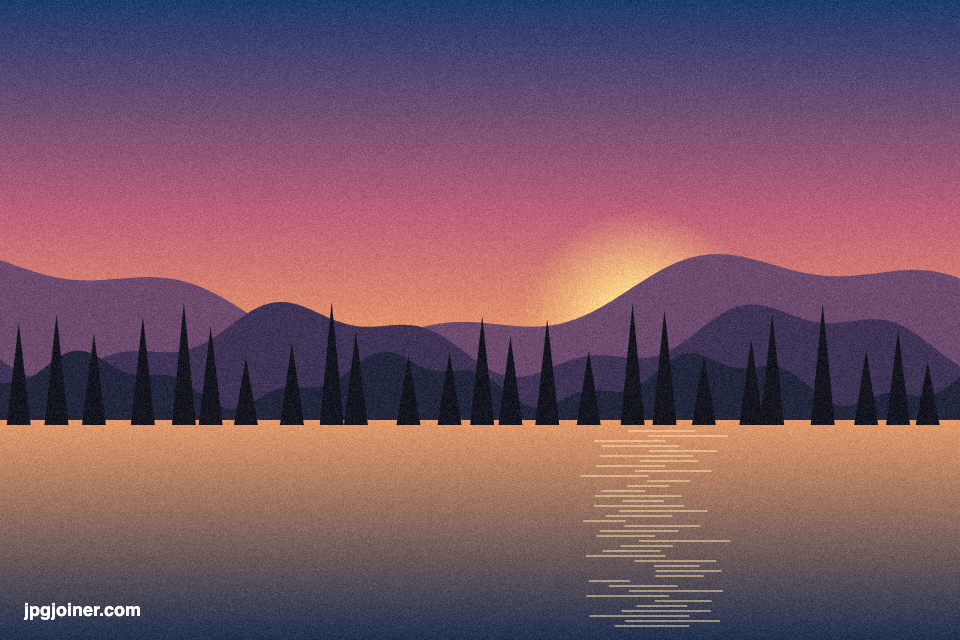
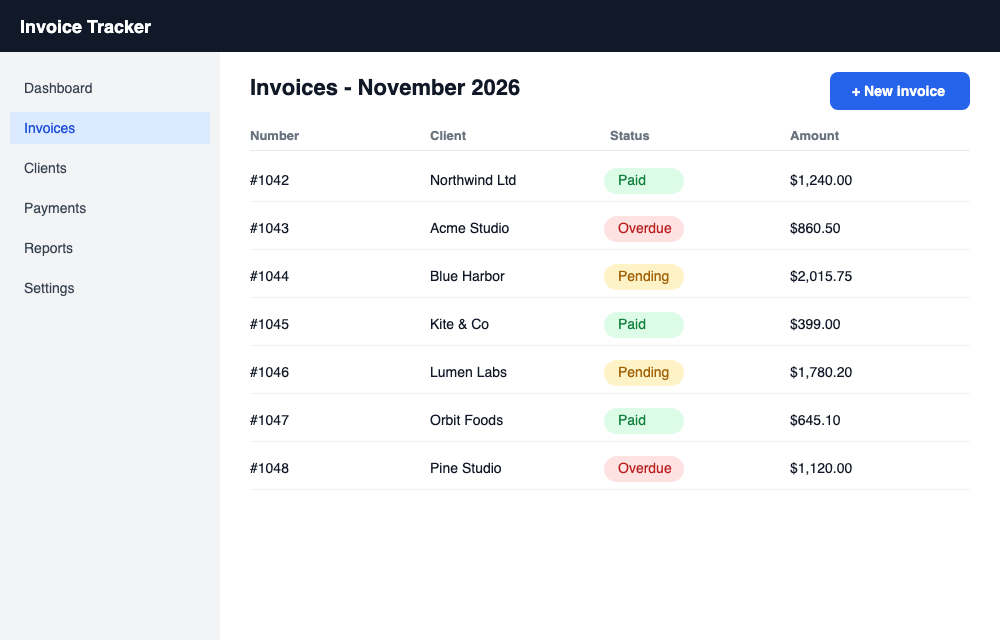
We made three PNGs and ran them through this converter in Chrome 157 on macOS. The photo is a 960x640 sunset scene we drew in code and added film grain to, so it compresses like a camera picture rather than a flat illustration. The logo is a 512x512 badge on a transparent background with a soft drop shadow. The screenshot is a 1000x640 invoice app with small text and colored status labels.
| Quality | Photo (PNG 1.0 MB) | Logo (PNG 139.9 KB) | Screenshot (PNG 78.3 KB) |
|---|---|---|---|
| 100 | 549.0 KB (-49%) | 79.3 KB (-43%) | 140.6 KB (+80%) |
| 92 (High) | 212.8 KB (-80%) | 18.1 KB (-87%) | 55.7 KB (-29%) |
| 80 (Balanced) | 106.6 KB (-90%) | 12.4 KB (-91%) | 40.5 KB (-48%) |
| 60 (Small) | 55.1 KB (-95%) | 8.9 KB (-94%) | 30.4 KB (-61%) |
| 40 | 33.4 KB (-97%) | 7.4 KB (-95%) | 25.1 KB (-68%) |
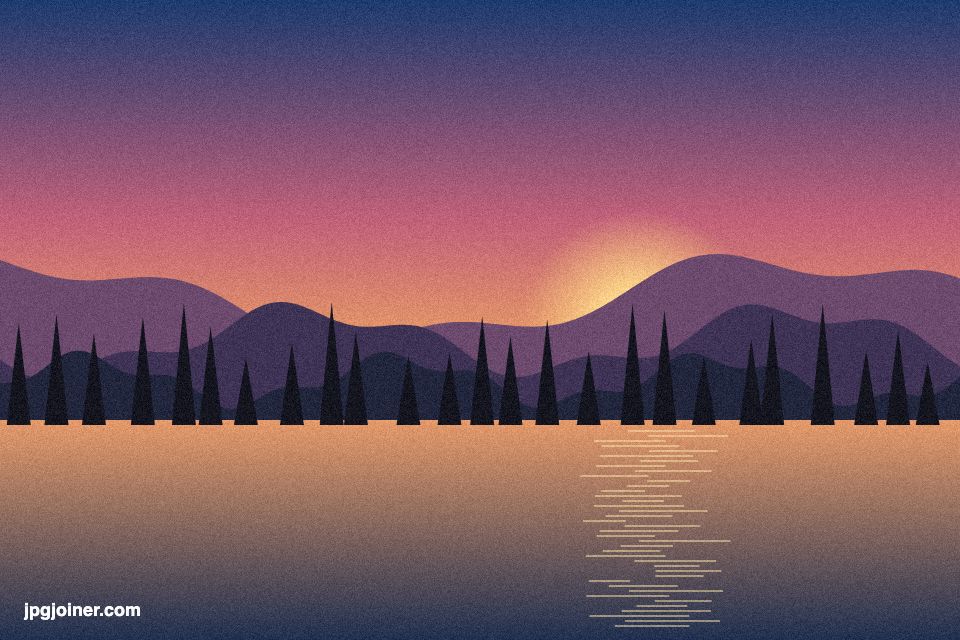
(original PNG, 1.0 MB)
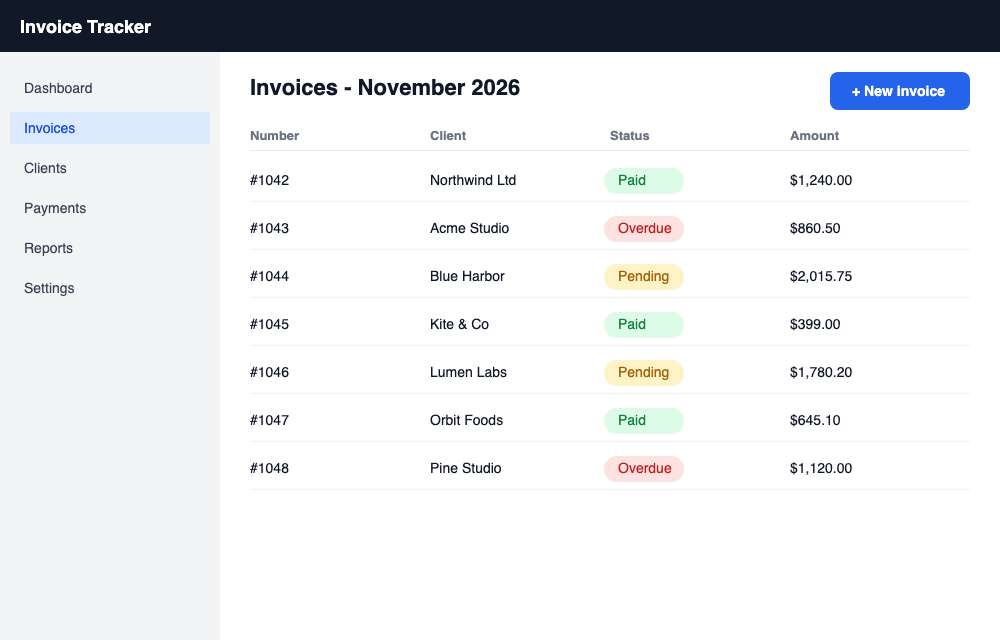
(original PNG, 78.3 KB)
The photo and the screenshot behave like different formats. Film grain is close to random noise, which PNG cannot compress, so the photo PNG was over a megabyte and JPG at quality 92 removed 80% of it. The screenshot is mostly flat white and grey, which PNG already stores efficiently. JPG saved only 29% at the same setting, and at quality 100 it made the file 80% bigger.
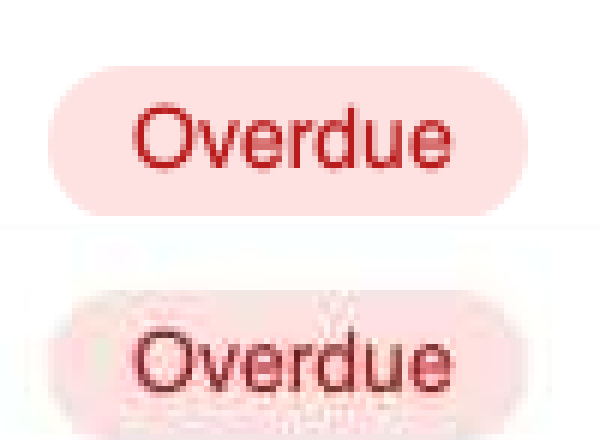
Lower quality is not free on text. At 60, the black text in the screenshot stays readable, but the thin red strokes of the "Overdue" label lose their color, because Chrome's JPG encoder keeps color at half the resolution of brightness (4:2:0 chroma subsampling):
Want to check the numbers? Use the Photo, Transparent logo, and Screenshot sample buttons in the converter above and pick the same quality. Safari and Firefox ship their own JPG encoders, so sizes there can differ slightly from Chrome's.
Why transparent PNGs turn black in JPG.
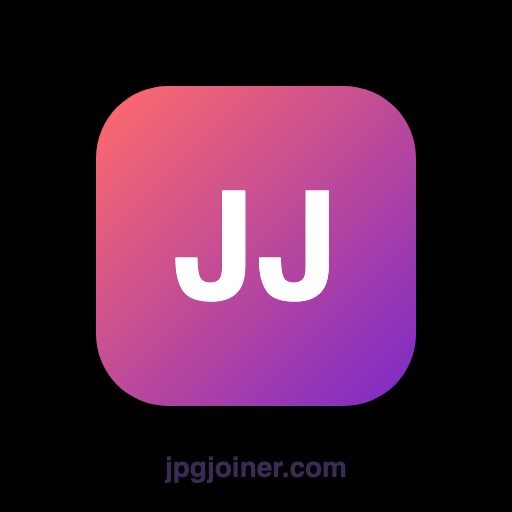
JPG has no alpha channel, so a transparent pixel has to become some real color. Browsers store a fully transparent canvas pixel as 0, 0, 0 with zero opacity. Drop the opacity and you get pure black. That is why a quick canvas-based converter, or a script that forgets one line, hands back a logo sitting in a black square.

139.9 KB
14.3 KB

18.1 KB
14.8 KB
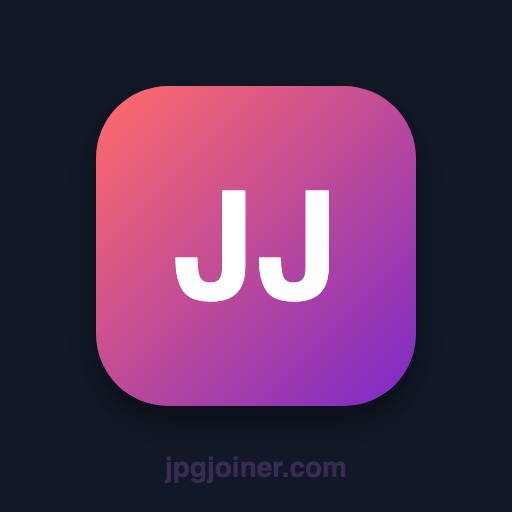
This converter fills the canvas with your background color first, then draws the PNG on top, so the browser blends every semi-transparent pixel correctly. Look at the drop shadow: on white it turns into a soft grey halo, on the dark navy it all but disappears. Shadows, glows, and anti-aliased edges are partly transparent, and they blend into whatever color you pick. Choose the color of the page, slide, or document the JPG will sit on, and the edges will look as if the transparency were still there.
If the image needs to stay transparent, JPG is the wrong target. Keep the PNG, or if you are combining several cut-outs into one picture, merge the PNGs losslessly so the transparency survives.
PNG vs JPG: when to convert and when to keep the PNG.
Convert: photos saved as PNG
Photos exported from editors, AI image generators, and some phone apps often arrive as multi-megabyte PNGs. Our grainy photo sample dropped 80% at quality 92 with no visible change. This is the case JPG was designed for.
Convert: upload forms that reject PNG
Job portals, exam applications, and visa forms often accept only JPG or JPEG, with a KB cap on top. Convert here, then use the JPG compressor to hit an exact limit. For a photo and signature on one page, the photo and signature joiner outputs JPG directly.
Keep PNG: screenshots with small text
Our screenshot saved only 29% at quality 92, and lower settings started eating colored text. For code, chat logs, and UI screenshots, the PNG is often small enough already and stays perfectly sharp.
Keep PNG: files you will edit again
Every time a JPG is opened, edited, and saved, it is compressed again and loses a little more. Edit in PNG and convert once at the end. Already holding a JPG that needs editing? Turn it back with the JPG to PNG converter to stop further loss.
Other ways to change PNG to JPG.
Windows: Paint
Open the PNG in Paint, choose File, Save as, JPEG picture. It is quick for one file, but Paint has no quality setting and converts one image at a time. Check transparent PNGs after saving, because the edges get whatever background Paint fills in.
Mac: Preview
Open the PNG in Preview, choose File, Export, set Format to JPEG, and drag the Quality slider. The slider has no numbers, so matching a setting between two exports is guesswork. For a batch, select the files in Finder, right-click, and choose Quick Actions, Convert Image (macOS 12 Monterey and later). It sets the format and size, but not the quality.
Photoshop
File, Export, Export As, then JPG with a quality percentage. Use it when you also need to retouch or crop. For a plain format change on twenty files, it takes far longer than dropping them here.
Command line: ImageMagick
For hundreds of files on a server, ImageMagick is the right tool. The background flag does the same job as the Background control here:
magick input.png -background white -flatten -quality 92 output.jpg
magick mogrify -format jpg -background white -alpha remove -alpha off -quality 92 *.png
Leave out the background and alpha options and you can get the same black-background bug described above, depending on the version and the file.
What to do with the JPG next.
Converted a set of screenshots or photos that belong together? Put them side by side or stacked in one image with the JPG joiner, which is handy for before-and-after shots and step-by-step guides. Need them as pages in a document instead? The JPG to PDF converter turns the batch into one PDF.
Sending to a print shop? The JPG has no DPI value stored, so run it through the DPI checker to see what print size the pixels support at 300 DPI before you order. Still too big for an email or a website? Resize the image to the width it is actually displayed at. Halving both sides removes three quarters of the pixels, which beats any quality setting. For background on how the formats compare, read our JPG vs PNG vs WebP guide.
Shopping around for a converter? Our iLovePDF comparison covers what changes when files never leave your browser.
More converters and image tools.
PNG to JPG questions.
How do I convert a PNG file to JPG?
Drop the PNG onto the upload area above, or tap it to pick files from your device. Conversion starts straight away at quality 92, and each file shows its new JPG size next to the original. If the PNG has transparent areas, a Background control appears so you can choose white, black, or any color. Click Download to save the JPG with the same file name and a .jpg extension. To convert several PNG files to JPG at once, select them together. There is no file count limit, and nothing is uploaded, because the whole conversion runs in your browser tab.
Is PNG to JPEG the same as PNG to JPG?
Yes. JPG and JPEG are the same format with two spellings of the extension. The three-letter .jpg dates from MS-DOS and early Windows, which only allowed three characters after the dot. Every app that opens one opens the other, and the bytes inside are identical. This converter saves files as .jpg because that is what most upload forms list. If a portal insists on .jpeg, rename the file after downloading. Changing those letters does not touch the image data, so there is no quality loss from renaming.
Does converting PNG to JPG lose quality?
Some, always, because JPG is a lossy format. How much you notice depends on the image. On our sample photo, quality 92 cut the file from 1.0 MB to 212.8 KB, and the difference is not visible at normal viewing size. Text and thin colored lines are where JPG shows first. The JPG encoder in Chrome stores color at half the resolution of brightness, so at quality 60 the red "Overdue" label in our screenshot sample turned a muddy brown (the zoomed comparison is on this page). For high quality PNG to JPG conversion, stay at 92 or above for anything with small text.
Why does my transparent PNG turn black when converted to JPG?
JPG has no alpha channel, so every transparent pixel needs a real color. A browser canvas stores fully transparent pixels as red 0, green 0, blue 0, alpha 0. When a converter skips the background step and hands that canvas to the JPG encoder, the alpha is dropped and those pixels come out black. We reproduced it with our logo sample: the corner pixel read exactly 0, 0, 0. This converter fills the canvas with your chosen background before drawing the PNG, so transparent areas become white by default. Pick the color of the page or slide the image will sit on, since soft shadows blend into it.
Why is my JPG bigger than the PNG?
This happens with screenshots, diagrams, and flat graphics at very high quality. PNG compresses large areas of one color extremely well, while JPG spends bytes on every 8x8 block whether it is plain or not. Our invoice screenshot was 78.3 KB as PNG. At quality 100 the JPG was 140.6 KB, 80% bigger. At quality 92 it was 55.7 KB, and at 80 it was 40.5 KB. The converter flags any file where the JPG comes out larger. If you see that warning on a screenshot, either lower the quality or keep the PNG, which will also keep the text sharper.
How do I convert PNG to JPG under 50 KB or 100 KB?
Start with the Small preset (quality 60) and check the size shown next to the file. Our 1000x640 screenshot sample came out at 30.4 KB there. Photos are harder because the pixel count drives the size: our 960x640 sample was 55.1 KB at quality 60, so a 12-megapixel phone photo will not get under 50 KB by quality alone. Reduce the dimensions first with the image resizer, then convert. For an exact KB target, such as a 20 KB signature or a 50 KB photo on an exam form, drop the PNG straight into the JPG compressor. It accepts PNG, fills transparent areas with white, and its target size mode finds the highest quality that fits under your limit.
Can I convert multiple PNG files to JPG at once?
Yes. Select or drop as many files as you like and they convert one after another with the same quality and background settings. The header shows the combined size before and after, for example our three samples went from 1.3 MB to 286.6 KB at quality 92. Download All saves each JPG separately with its original name. Chrome may ask once whether the site can download multiple files, so click Allow. The practical limit is your device memory: a desktop handles dozens of 12-megapixel images without trouble, an older phone does better in batches of ten or so.
How do I change a PNG to JPG on iPhone or Android?
Open this page in Safari or Chrome and tap the upload area. On iPhone, choose Photo Library for screenshots (iOS saves them as PNG) or Browse to pick from the Files app. On Android, the picker shows Photos and Files. After converting, tap Download. iPhone asks whether to view or download the file and saves it to the Downloads folder in Files, from where you can share it to Photos. Android saves it to the Downloads folder. Conversion happens on the phone itself, so it works the same on mobile data and takes about a second for a typical screenshot.
Is this an iLovePDF or iLoveIMG alternative for PNG to JPG?
Yes for this job, and the difference is where the work happens. iLovePDF handles images through iLoveIMG, its sister site, which uploads your files to its servers, converts them there, and sends the result back. This converter decodes and encodes inside your browser, so the PNG never leaves your device. That matters for ID scans, unreleased designs, and screenshots of work tools. It is also faster on slow connections because nothing travels over the network. iLoveIMG offers more image tools in one place, so if you need upscaling or background removal, it is the broader choice.
Does PNG to JPG keep DPI, metadata, and color profile?
Not all of it. We checked the JPG headers this converter writes: the density field is set to an aspect ratio with no DPI, so print software falls back to its default, usually 72 or 96 DPI. If a print shop needs 300 DPI, set it in your print dialog or editor afterwards. Text metadata stored in the PNG, such as author or creation software, is not carried over. The output does embed an RGB color profile, and colors are converted to the sRGB space that browsers and phones display by default, so a typical PNG looks the same after conversion.
Are my PNG files uploaded anywhere?
No. The converter uses the Canvas API built into your browser. The PNG is decoded, drawn over the background color, and encoded as JPG, all in memory on your device. You can check it yourself: open developer tools with F12, switch to the Network tab, and convert a file. No request carries your image. The only network requests you will see are the page itself and, if you click a sample button, that sample file downloading from our site. Closing the tab clears everything from memory.