
Resize GIF online - shrink animated GIFs to any size.
Resize an animated GIF by percentage or exact pixels, or squeeze it under a KB limit for Discord. Frame timing stays intact, and the GIF never leaves your browser.
Drop your image here
Animated or static GIF. You can also paste with Ctrl+V.
How to resize a GIF in 3 steps.
Load the GIF
Drop the file, tap to browse, or paste it. You see its pixel size, frame count, and loop length right away, so you know whether a 300-frame screen recording is what you are dealing with.
Set the new size
Tap a preset like Discord emoji, drag the percentage slider, or type exact pixels. Have a hard limit like 256 KB or 512 KB? Turn on "Fit under a file size" and the tool finds the largest GIF that fits.
Compare and download
The resized GIF plays next to the original with its new size in KB. Not right? Change a setting and resize again. Download saves it as name-WIDTHxHEIGHT.gif, so you can tell versions apart.
What each GIF resizer setting does.
- Presets: Discord emoji (128x128, under 256 KB), Sticker 320x320 (under 512 KB), Slack emoji (128x128, under 128 KB), Twitch emote (112x112, under 512 KB), Email (600 px wide), and Half size.
- By percentage: 10 to 200 percent on the slider, or type up to 400. Width and height scale together, so the shape never changes.
- Width and height: exact pixels. With the lock on, typing one side fills in the other. Unlock it to change the shape.
- Fit, crop, or stretch: shows up when the new shape differs from the original. Fit pads with transparency, Crop to fill trims the overflow from the centre, Stretch distorts.
- Smooth or Sharp: Smooth blends pixels and suits video clips and photos. Sharp (nearest neighbor) copies pixels and suits pixel art, emoji, and GIFs with text.
- Frames: keep all, or keep every 2nd, 3rd, or 4th frame. Skipped frames add their delay to the frame that stays, so the loop takes the same time and only gets choppier.
- Fit under a file size: a KB ceiling, with switches for whether the tool may go smaller than your size and whether it may skip frames to get there.
How much smaller a resized GIF gets.
We ran two GIFs through this tool. The first is a bouncing ball we made for this test: 512x512, 14 frames, smooth gradients in the sky and on the ball (116 KB). The second is a 400x400, 11-frame countdown in flat colors (32 KB), made with our countdown GIF maker. File size tracks pixel count closely, so halving the width cut the ball to 38% of its size, not 50%.
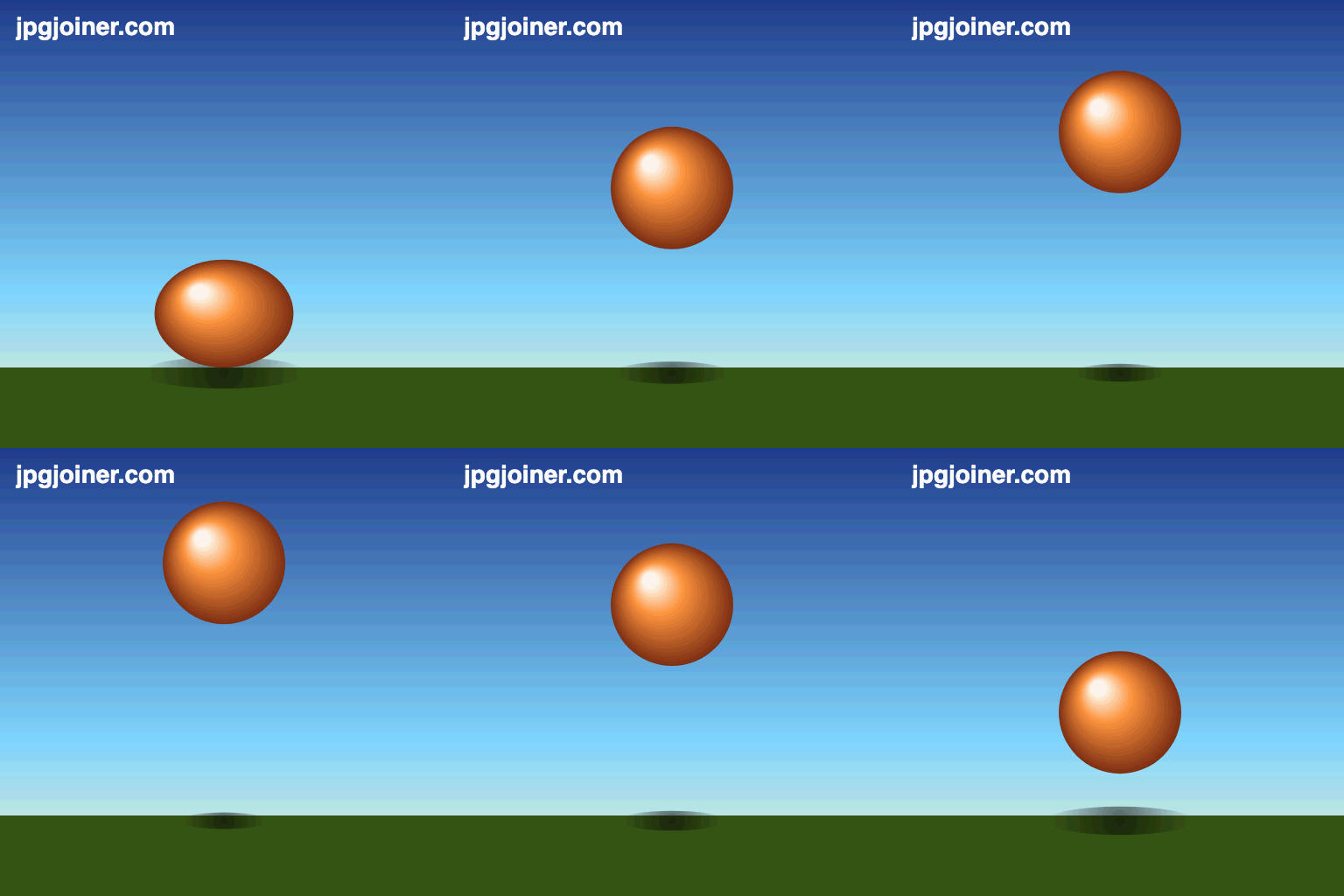
512x512, 116 KB
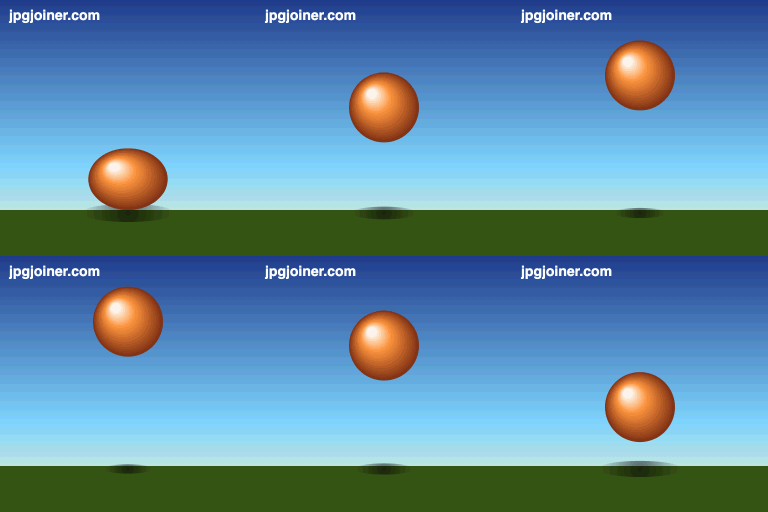
256x256, 43.9 KB
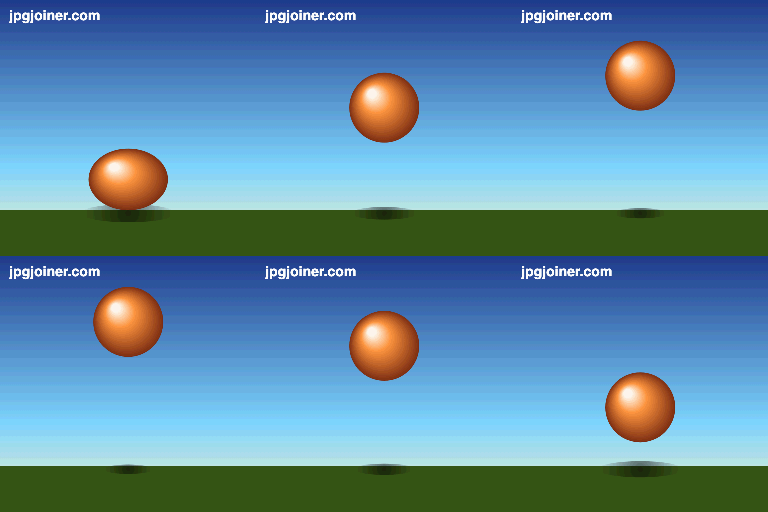
256x256, 42.5 KB
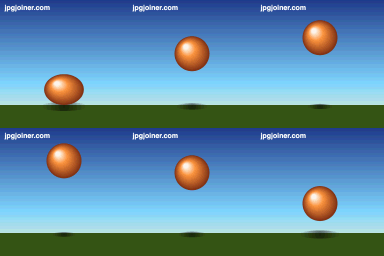
128x128, 18.5 KB
These are the actual output files, shown enlarged to the same width. Look at the "jpgjoiner.com" text: Smooth keeps it readable, Sharp makes the letters jagged. Want to check the numbers? Use "Try the sample GIF" in the tool above and pick the same settings.
| Setting | Ball (512 px, 116 KB) | Countdown (400 px, 32 KB) |
|---|---|---|
| 50%, Smooth | 43.9 KB | 8.5 KB |
| 50%, Sharp | 42.5 KB | 6.4 KB |
| 25%, Smooth | 18.5 KB | 4.3 KB |
| 50%, every 2nd frame | 23.1 KB | 5.4 KB |
| 200%, Sharp | 294 KB | 34 KB |
Two things stand out. Sharp saved 25% on the flat countdown but only 3% on the gradient-heavy ball. Smooth blending creates in-between shades, which costs a lot when the original had few colors and almost nothing when it already had hundreds. And skipping every other frame nearly halved the file at the same pixel size, which is the better trade when a platform demands exact dimensions, like a 128x128 emoji slot.
GIF resize for Discord, Slack, and Twitch.
Chat platforms reject a GIF on two counts: pixel size and file size. These are the limits the presets aim for. Platforms change rules, so if an upload is refused, check the platform's own help page first.
| Use | Pixels | Max file size |
|---|---|---|
| Discord emoji | 128x128 recommended | 256 KB |
| Discord sticker | 320x320 exactly | 512 KB |
| Slack emoji | Square works best | 128 KB |
| Twitch animated emote | 112x112 (manual) or square up to 4096 | 512 KB per size (manual), 1 MB (auto-resize) |
Discord emoji: Discord checks the size of the file you upload, not the size it is displayed at. A 1.2 MB reaction GIF is refused even though it would show up tiny in chat, which is why the preset turns on the 256 KB target. Our 14-frame sample came out at 18.5 KB at 128x128, so short loops fit easily. Long video clips with 60 or more frames are the ones where the tool will keep every 2nd frame.
Discord stickers: the 512 KB limit is where most "gif resize to 512kb" searches come from. Discord's developer docs list GIF as a sticker format, but some users report the server sticker uploader asking for PNG or APNG. If a 320x320 GIF under 512 KB is refused, the format is the problem, not the size.
Slack: Slack's help page says square images under 128 KB work best. 128 KB is tight for an animation, so try Sharp mode first, then let the tool skip frames.
Twitch: per Twitch's animated emote rules, emotes must be square. Manual mode wants three GIFs at 28, 56, and 112 px. Run the GIF through three times with the Twitch preset, then change the width and height to 56 and 28.
How to resize a GIF in other situations.
Resize a GIF image for a website
Measure the largest width the GIF is ever shown at, double it for retina screens, and resize to that. A hero animation displayed at 400 px only needs to be 800 px wide. Anything bigger is bytes the visitor downloads and never sees. For a GIF that only needs to show one moment, a still loads far faster: grab it with the GIF to JPG converter. Showing several stills in a row? Join the JPGs into one image so the page makes one request instead of five.
Resize an animated GIF in Photoshop
Photoshop opens a GIF as a frame animation. Image > Image Size resizes all frames at once. Export with File > Export > Save for Web (Legacy), set Looping to Forever, and choose GIF. Photoshop is the better choice when you also need to retime frames by hand. For a plain resize, it takes four dialogs to do what this page does in one click.
Canva GIF resize
Canva's Resize feature is part of its paid plans and re-lays out the whole design rather than scaling the GIF. It also re-renders the animation on export, which can change the frame timing. If the GIF already exists and only needs new dimensions, resize it here and place the result in Canva at its final size.
MP4 to GIF at a smaller size
Converting a video to GIF at full 1080p produces huge files, often 10 MB or more for 5 seconds. Pick the final width during conversion, around 480 px for chat, rather than resizing afterwards. Our guide to resizing GIFs has the exact ffmpeg command, plus gifsicle and PHP methods.
Pixel art and retro sprites
Always use Sharp and whole-number factors: 200%, 300%, 400%. At 150% some source pixels become 1 output pixel wide and others 2, and the sprite looks lumpy. Sharp also keeps the exact palette, so a 16-color sprite stays 16 colors. For a single still of a sprite, the image resizer has the same Sharp mode for PNG. To lay the extracted frames out as a sprite sheet, merge the PNG files into one grid: PNG keeps the hard edges and transparency that pixel art needs.
Why most image tools break animated GIFs.
When a browser draws a GIF onto a canvas, it draws one frame. That is why general image resizers hand back a still. This tool reads the file byte by byte instead, following the GIF89a specification, and decodes every frame with its delay.
Frames are often partial
Optimized GIFs store only the rectangle that changed since the last frame. A naive resizer that scales each stored rectangle on its own gets rounding errors at the edges, and you see thin lines flicker along the patch borders. This tool first rebuilds each complete frame using its disposal method, then scales the complete picture, then re-optimizes so unchanged areas are stored once.
Big downscales are done in steps
Browsers implement the Canvas "high" imageSmoothingQuality setting differently, and some blend only a few neighboring pixels per output pixel. Going straight from 1000 px to 128 px skips most of the source, and in an animation the skipped detail changes every frame, so fine textures shimmer. Smooth mode halves the size repeatedly until it is within 2x of the target, then does the final step.
The 256-color limit
Every GIF frame uses at most 256 colors. If the resized frames still fit in 255 colors (one slot is kept for transparency), every color is kept exactly. If smoothing pushes it past that, the tool builds one shared palette with a median cut, weighted so small but distinct details such as subtitles keep their own colors. Sharp mode never creates new colors, which is why it produces smaller files.
More tools for GIF files.
GIF resizing questions.
How do I resize a GIF without losing the animation?
Use a tool that decodes every frame instead of drawing the GIF onto a canvas once. A canvas or a basic image editor only sees the first frame, which is why most "resize image" tools hand back a still. This GIF resizer rebuilds all frames, applies each frame's disposal method, scales them, and re-encodes with the original frame delays, so a 15-frame loop comes back as a 15-frame loop at the new size.
How do I resize a GIF without losing quality?
Shrink, do not enlarge, and pick the right resize mode. Downscaling a 512 px GIF to 256 px keeps it sharp because each output pixel averages real detail. For pixel art, icons, and GIFs with text, choose Sharp: it copies existing pixels instead of blending them, so no new colors appear and edges stay hard. On our flat-color countdown test GIF, Sharp also made a 25% smaller file than Smooth at the same size (6.4 KB vs 8.5 KB). Enlarging a GIF always invents pixels, so use whole-number factors like 200% or 300% with Sharp if you must.
How do I resize a GIF for Discord?
Tap the Discord emoji preset. It sets 128x128, crops the GIF to a square from the centre, and turns on "Fit under 256 KB". If the 128x128 version is still too heavy, the tool keeps every 2nd frame (the loop stays the same length) rather than shrinking the emoji below 128 px. Discord caps emoji at 256 KiB (262,144 bytes). The tool aims for 256,000 bytes so the file passes whichever way the limit is counted.
How do I resize a GIF to 512 KB or another exact file size?
Tick "Fit under a file size" and type the limit, for example 512. The tool encodes the GIF at your chosen size and, if it is too big, searches for the largest version that fits: first by shrinking the dimensions (never below half before trying other options), then by skipping frames, keeping at least 8. The result line tells you what it changed, for example "shrank to 200x200 and kept every 2nd frame". KB here means 1,000 bytes, so a 512 KB result also passes portals that count 1,024.
Why did my GIF get bigger after resizing?
Two common reasons. Enlarging multiplies pixels: a 2x upscale has 4 times the pixels, and our 116 KB sample GIF became 294 KB at 200%. The other is Smooth mode on a GIF that used few colors: blending creates in-between shades, and the encoder has to store a fuller palette. Switch to Sharp for flat graphics, or turn on "Fit under a file size" and set the original size as the limit.
Can you resize GIFs for webpages with just CSS?
You can display a GIF smaller with width and height in CSS or HTML, but the browser still downloads the full file. A 4 MB GIF shown at 300 px still costs 4 MB and drags down Largest Contentful Paint. Resize the GIF itself to the largest size it is actually displayed at (double that for sharp retina screens), then set the same width and height attributes in the img tag to prevent layout shift.
How do I resize my GIF on iPhone or Android?
Open this page in Safari or Chrome, tap the upload area, and choose the GIF from Photos or Files. Pick a preset or a percentage, tap Resize GIF, then Download. On iPhone, the saved GIF lands in Files or Photos depending on your Safari setting and plays in the Animated album. Phones have less memory, so a 1080p screen-recording GIF with 300 frames may need "Every 2nd" frames to finish.
Does resizing keep the transparent background?
Yes, transparent pixels stay transparent. GIF transparency is on or off per pixel, with no partial opacity, so with Smooth mode the soft edge pixels created by scaling are snapped to either solid or clear. On a light-colored edge that sits on transparency you may see a faint fringe. Sharp mode avoids this because it never creates half-transparent pixels in the first place.
Is this a good ezgif alternative for resizing GIFs?
For most resize jobs, yes, and the main difference is where the work happens. Ezgif uploads your GIF to its server and processes it there. This tool decodes, resizes, and encodes in your browser, so the file never leaves your device, which matters for unreleased artwork or work screenshots. Ezgif still has more editing options (crop per frame, speed, optimize with lossy compression), so for heavy editing it is the better pick.
Can I resize a GIF to a different shape, like square?
Yes. Switch to Width and height, unlock the aspect ratio, and enter the new size. When the shape differs from the original you get three choices: Fit adds transparent padding so nothing is cut off, Crop to fill fills the whole frame and trims the edges that stick out, and Stretch distorts the GIF to the exact size. Square emoji almost always look best with Crop to fill.
Are my GIFs uploaded anywhere?
No. Everything runs with JavaScript and the Canvas API inside the tab. Open developer tools (F12), go to the Network tab, and resize a GIF: no request carries your file. Closing the tab clears it from memory.